

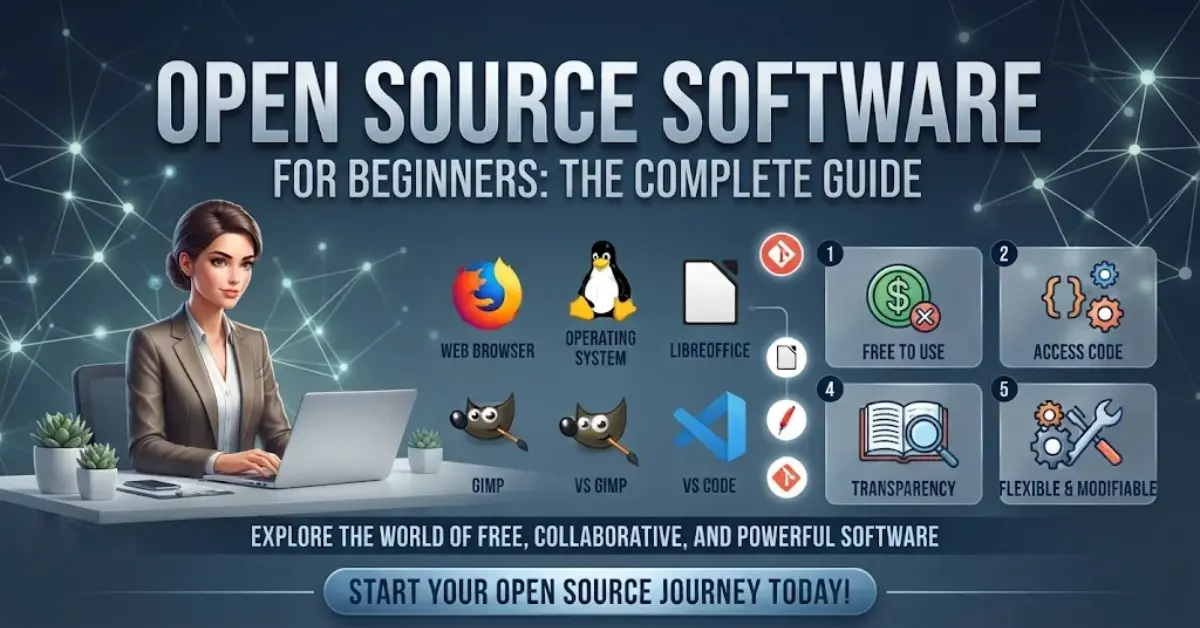
Open source software for beginners is the easiest way to get powerful, free and trustworthy tools on your computer without paying for expensive licenses. If you have ever wanted a free alternative to Microsoft Office, Photoshop or video editing suites, open source programs can do all of that and more.
But if you are new, the terms can feel confusing. What does “open source” actually mean? Is it safe? Which programs should you try first? This guide answers every one of those questions in plain language.
By the end, you will understand what open source software is, why it is perfect for beginners, which tools are worth installing first, and how to download and use them safely. Whether you are a student, a freelancer, a small business owner or simply curious, you can start today with no technical background.
What Is Open Source Software?
Open source software is a program whose source code, the human-readable instructions that make it work, is publicly available. Anyone can view the code, use it, modify it and share it, under a license that allows this.
Think of it like a recipe. With a closed recipe, you only get the finished dish. With an open recipe, you can see every ingredient, change it to suit your taste and share your version with friends.
Open source vs. free software
Many beginners assume “open source” simply means “free of charge.” Most open source programs are free to download, but the real meaning is about freedom and transparency, not price. Some open source projects also offer paid support, hosting or premium services. Likewise, some free programs are not open source because their code stays private.
Common open source licenses
Every open source project ships with a license that explains what you can do. You do not need to read legal text as a beginner, but it helps to recognize the names:
- GPL (GNU General Public License): you can use and change the software, and shared changes must stay open too.
- MIT License: very permissive, with almost no restrictions on use.
- Apache License 2.0: permissive, with added protection around patents.
For everyday use, all of these let you install and run the software at no cost.
Why Open Source Software Is Great for Beginners
Starting with open source software gives you real advantages, especially when you are still learning.
1. It costs nothing to start
You can try a dozen programs without spending a cent. If a tool does not suit you, uninstall it and move on. There are no subscriptions, trial timers or hidden upgrade walls.
2. It is transparent and trustworthy
Because the code is public, thousands of developers can inspect it for bugs and security problems. Hidden tracking or malicious behavior is much harder to conceal in open code.
3. It respects your privacy
Many open source tools collect little or no personal data. You stay in control of your files and settings.
4. It has huge communities
Popular projects have forums, tutorials, video guides and active user groups. When you get stuck, someone has usually solved the same problem before.
5. It teaches you valuable skills
Learning tools like Linux, Blender or GIMP builds career-ready skills. Many employers value experience with open source technology.
6. It works on older computers
A lightweight open source operating system can bring an old laptop back to life, saving you money on hardware.
Best Open Source Software for Beginners by Category
You do not need to install everything at once. Start with one or two programs that solve a problem you have today. Here are beginner-friendly picks, grouped by what they do.
Office and productivity
LibreOffice is a full office suite with a word processor, spreadsheet and presentation tool. It opens and saves Microsoft Office formats, so sharing files with others is easy.
Thunderbird is a clean email client that manages several accounts, calendars and contacts in one place.
Web browsing
Firefox is a fast, privacy-focused browser with strong tracking protection and thousands of extensions. It is one of the most successful open source projects in the world.
Images and graphic design
GIMP is a powerful photo editor, often compared to paid editing software. It handles retouching, cropping, layers and color correction.
Inkscape creates vector graphics such as logos, icons and illustrations that stay sharp at any size.
Krita is designed for digital painting and is loved by illustrators and concept artists.
Audio and video
VLC Media Player plays almost any audio or video format without extra codecs. It is the first tool many people install on a new computer.
Audacity records and edits audio, which makes it ideal for podcasts, voice-overs and music cleanup.
OBS Studio records your screen and streams live video. It is widely used for tutorials, webinars and online classes.
Kdenlive is a beginner-friendly video editor with a multi-track timeline, effects and titles.
Blender is a complete 3D creation suite for modeling, animation and rendering. It has a learning curve, but its beginner tutorials are excellent.
Security and privacy
Bitwarden stores your passwords securely and fills them in automatically, so you can use a strong unique password for every account.
KeePassXC is an offline password manager that keeps your encrypted vault on your own device.
Operating systems
Linux Mint is considered one of the friendliest Linux distributions. Its layout feels familiar to Windows users, and it runs well on older hardware. Ubuntu is another popular choice with a very large help community.
Websites and blogging
WordPress powers a huge share of the internet and lets you build a blog or business site without coding. Nextcloud lets you host your own private file storage and sharing.
Quick comparison
| Need | Software | Replaces | Difficulty |
|---|---|---|---|
| Documents and spreadsheets | LibreOffice | Paid office suites | Easy |
| Photo editing | GIMP | Paid photo editors | Medium |
| Media playback | VLC | Default players | Easy |
| Screen recording | OBS Studio | Paid recorders | Medium |
| Video editing | Kdenlive | Paid video editors | Medium |
| Passwords | Bitwarden | Browser-only storage | Easy |
| Operating system | Linux Mint | Windows | Medium |
How to Choose the Right Open Source Software
With so many options, a simple checklist helps you pick tools that are reliable and easy to live with.
- Define your goal first. Decide what you need: editing photos, writing documents, recording your screen. Pick one task and find the tool for it.
- Check how active the project is. Look for recent updates. A program updated within the last year is usually well maintained.
- Look at the community size. Active forums, tutorials and user groups make learning much faster.
- Read the documentation. Good projects have clear guides, getting-started pages and FAQs written for new users.
- Confirm your system is supported. Make sure the software runs on your operating system, whether Windows, macOS or Linux.
- Test before committing. Install it, use it for a small task and decide if the workflow feels comfortable.
If a tool feels too complicated, that does not mean you are doing something wrong. Try an alternative, since most categories have several good options.
How to Download and Install Open Source Software Safely
Open source does not automatically mean every download you find is safe. Fake copies exist, so follow these steps.
- Use the official project website. Type the program’s name into a search engine and choose the official site, not a third-party download portal.
- Prefer trusted package sources. On Linux, use the built-in software manager. On Windows and macOS, use the official installer or a reputable package manager.
- Check the file details. Many projects publish checksums, which are codes that prove your download has not been altered.
- Avoid bundled extras. Decline any toolbar, “optimizer” or unrelated program that tries to install alongside.
- Run the installer and follow the prompts. Most installations take only a few minutes.
- Keep it updated. Updates fix security problems and add features, so turn on automatic updates when available.
Tip: start in a safe way
If you are nervous about changing your computer, install one program at a time. For operating systems like Linux, try a live USB drive first. It lets you test the system without installing anything permanently.
Common Beginner Mistakes (and How to Keep Learning)

Mistakes to avoid
- Installing too many programs at once. This overwhelms you and slows your computer. Add tools gradually.
- Downloading from unofficial sites. Always use the official source to avoid modified or unsafe copies.
- Expecting an exact copy of paid software. Open source tools often work differently. Give yourself a week to adjust before judging.
- Skipping the documentation. A ten-minute read of the official guide can save hours of frustration.
- Ignoring updates. Outdated software can contain known security flaws.
- Not backing up files. Before trying a new operating system, save your important files somewhere safe.
How to keep learning
The best way to grow is to use the software for real projects. Edit a family photo in GIMP, write a report in LibreOffice or record a short tutorial with OBS Studio. Watch beginner video courses, join user forums and ask questions politely. Most communities love helping newcomers.
Giving back to open source
You do not need to be a programmer to contribute. You can report bugs, improve documentation, translate the interface into your language, answer questions in forums or donate to projects you love. Every small contribution keeps these tools free and improving for everyone.
Frequently Asked Questions
Is open source software really free?
Most open source software is free to download and use. Some projects offer optional paid services such as hosting, training or technical support, but the core software remains free.
Is open source software safe to use?
Yes, when downloaded from the official source. The public code is reviewed by many people, which often helps problems get found and fixed quickly. Safety still depends on keeping your software updated and avoiding unofficial downloads.
Can I use open source software for business?
In most cases, yes. Many open source licenses allow commercial use. Check the license of each project to be sure.
Do I need coding skills to use open source software?
No. Most beginner-friendly programs have a normal graphical interface, just like any other app. Coding is only needed if you want to modify the software itself.
What is the best open source software for a complete beginner?
VLC, Firefox and LibreOffice are the easiest places to start. They are simple to install, widely used and have plenty of tutorials.
Conclusion
Open source software for beginners offers a rare mix of freedom, quality and zero cost. You can write documents, edit photos, record videos, protect your passwords and even replace your operating system without paying for licenses.
The smartest way to begin is small. Pick one program that solves a real problem, download it from the official website, and spend a week learning it. Once you feel comfortable, add another tool. Before long, you will have a complete, powerful and private toolkit built entirely from open source.
Start with one tool today, and you will quickly see why millions of people around the world rely on open source every day.
